Commands and Shortcuts
Hummingbot has two CLI surfaces:
| Interface | Best for | Docs |
|---|---|---|
hbot (recommended) |
Automation, scripts, agents, headless servers | hbot CLI |
| Interactive client | Learning, manual trading, Gateway/DEX commands | This page |
hbot commands
See the full hbot CLI reference for install, quickstart, Docker modes, exit codes, and password handling. Summary:
| Command | Function |
|---|---|
connect |
List connections or add API keys |
balance |
Display balances (perps include positions) |
create |
Create a strategy config |
import |
Load an existing config |
config |
Show/edit global and strategy settings |
deploy |
Create/load config and start in one step |
start |
Start the bot |
stop |
Stop the bot |
status |
Bot run state and live status |
logs |
Tail log files |
history |
Performance history |
doctor |
Install health check |
update |
Update Hummingbot software |
Interactive client commands
Below are the commands available inside the interactive client (docker attach hummingbot or make run).
| Command | Function |
|---|---|
connect |
List available exchanges and add API keys to them |
create |
Create a new bot |
import |
Import an existing bot by loading the configuration file |
help |
List available commands |
balance |
Display your asset balances across all connected exchanges |
config |
Display the current bot's configuration |
start |
Start the current bot |
stop |
Stop the current bot |
status |
Get the market status of the current bot |
history |
See the past performance of the current bot |
gateway |
Helper commands for Gateway server |
exit |
Exit and cancel all outstanding orders |
export |
Export your bot's trades or private keys |
ticker |
Show market ticker of current order book |
rate |
Show rate of a given trading pair |
lphistory |
See LP position history and performance |
mqtt |
Manage the MQTT broker bridge (start, stop, restart) |
Gateway Commands
Gateway v2.8.0 introduces comprehensive commands for managing wallets, executing swaps, and managing liquidity positions on decentralized exchanges. For detailed usage and examples, see the Gateway Commands Reference.
| Command | Function |
|---|---|
allowance |
Check token allowances for Ethereum connectors |
approve |
Approve token for use with Ethereum connectors |
balance |
Check token balances for connected wallets |
config |
View or update Gateway configuration |
connect |
Add a wallet for a specific chain |
generate-certs |
Create SSL certificate for Gateway |
list |
List available chains, networks, and connectors |
lp |
Manage liquidity positions on AMM and CLMM pools |
ping |
Test connection to Gateway and check node/chain status |
pool |
View or update pool information |
swap |
Execute token swaps through DEX connectors |
token |
View or update token information |
Users can also use gateway --help to see all available commands:
>>> gateway --help
usage:  gateway [-h] {allowance,approve,balance,config,connect,generate-certs,list,lp,ping,pool,swap,token} ...

positional arguments:
  {allowance,approve,balance,config,connect,generate-certs,list,lp,ping,pool,swap,token}
    allowance           Check token allowances for ethereum connectors
    approve             Approve token for use with ethereum connectors
    balance             Check token balances
    config              Show or update configuration
    connect             Add a wallet for a chain
    generate-certs      Create SSL certificate
    list                List available connectors
    lp                  Manage liquidity positions
    ping                Test node and chain/network status
    pool                View or update pool information
    swap                Swap tokens
    token               View or update token information

options:
  -h, --help            show this help message and exit
Gateway help command can also be used with specific commands:
>>> gateway swap --help
usage: gateway swap [-h] [connector] [args ...]

positional arguments:
  connector   Connector name/type (e.g., jupiter/router)
  args        Arguments: [base-quote] [side] [amount]

options:
  -h, --help  show this help message and exit
It can also be used with other commands:
>>> gateway lp --help
usage: gateway lp [-h] [connector] [{add-liquidity,remove-liquidity,position-info,collect-fees}]

positional arguments:
  connector             Connector name/type (e.g., raydium/amm)
  {add-liquidity,remove-liquidity,position-info,collect-fees}
                        LP action to perform

options:
  -h, --help            show this help message and exit
Docker Commands
These are the commonly used docker commands when using Hummingbot.
| Command | Function |
|---|---|
docker ps -a |
List containers |
docker rm [container name] |
Remove one or more containers |
docker rmi [image name] |
Remove one or more images |
docker rm $(docker ps -a q) |
Remove all containers |
To view more docker commands, go to Docker Command Line Reference.
Linux Commands
These are the basic commands used to navigate Linux commonly used with Hummingbot.
| Command | Function |
|---|---|
ls |
Lists all files and folders in the current directory |
cd |
Change directory / move to another folder location |
mv |
Moves or renames a file or directory |
cp |
To copy files or group of files or directory |
rm |
Remove / delete files and folders |
top |
Details on all active processes |
htop |
Monitor the system processes in real time |
For more information about basic Linux commands, check out The Linux command line for beginners.
Keyboard Shortcuts
| Keyboard Combo | Command | Description |
|---|---|---|
| Double Ctrl + C | Exit | Press CTRL + C twice to exit the bot |
| Ctrl + S | Status | Show bot status |
| Ctrl + F | Search / Hide Search |
Toggle search in log pane |
| Ctrl + X | Exit Config | Exit from the current configuration question |
| Ctrl + A | Select All | * Select all text |
| Ctrl + Z | Undo | * Undo action |
| Single Ctrl + C | Copy | * Copy text |
| Ctrl + V | Paste | * Paste text |
| Ctrl + T | Toggle Logs | Hide / Show logs pane |
* Used for text edit in input pane only.
Search
- Press Ctrl + F to trigger display the search field
- Enter your search keyword (not case sensitive)
- Hit
Enterto jump to the next matching keyword (incremental search) - When you are done, press Ctrl + F again to go back to reset
Copy and Paste
Linux
| Keyboard Combo | Command |
|---|---|
| Ctrl + C | Copy |
| SHIFT + RMB (right-mouse button) | Paste |
To highlight, hold SHIFT + LMB (left mouse button) and drag across the text you want to select.
Mac
| Keyboard Combo | Command |
|---|---|
| ⌘ + C | Copy |
| ⌘ + V | Paste |
Note
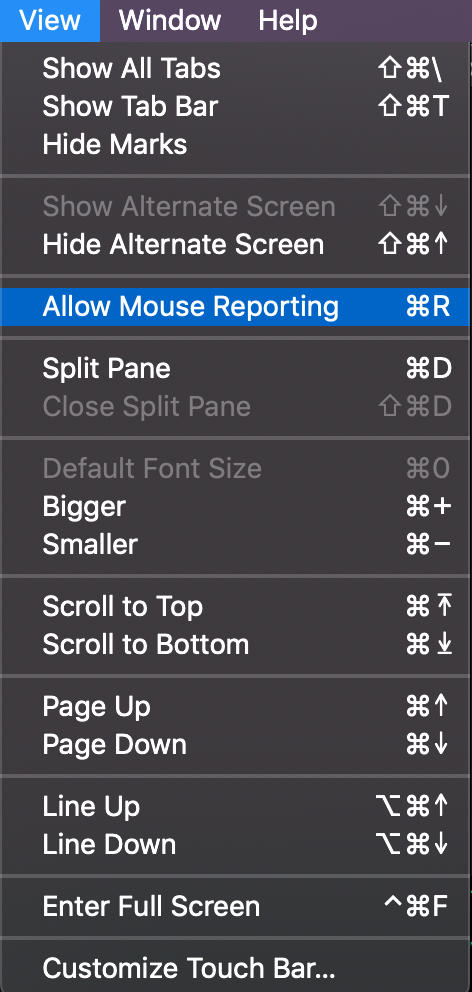
To select text on macOS, you may need to enable the Allow Mouse Reporting option by pressing ⌘ + R or selecting View > Allow Mouse Reporting in the menu bar.
Then you should be able to select text by holding LMB (left mouse button) and drag. You can also hold down ⌥ + shift to select specific lines like the image below.
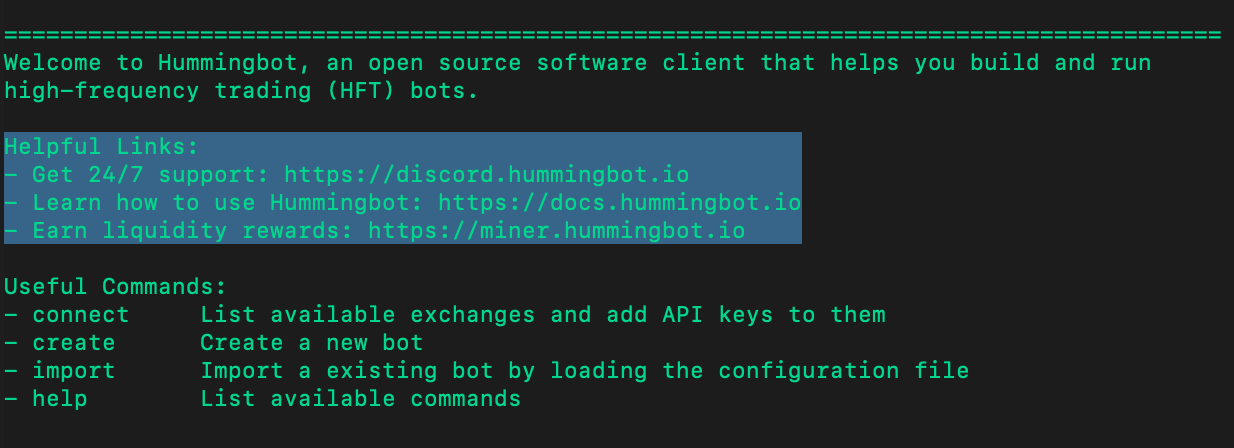
When accessing Hummingbot on a Linux cloud server through ssh using a macOS terminal, hold down the Option ⌥ key or ⌥ + ⌘ to highlight text.
Windows
| Keyboard Combo | Command |
|---|---|
| CTRL + SHIFT + C | Copy |
| CTRL + SHIFT + V | Paste |
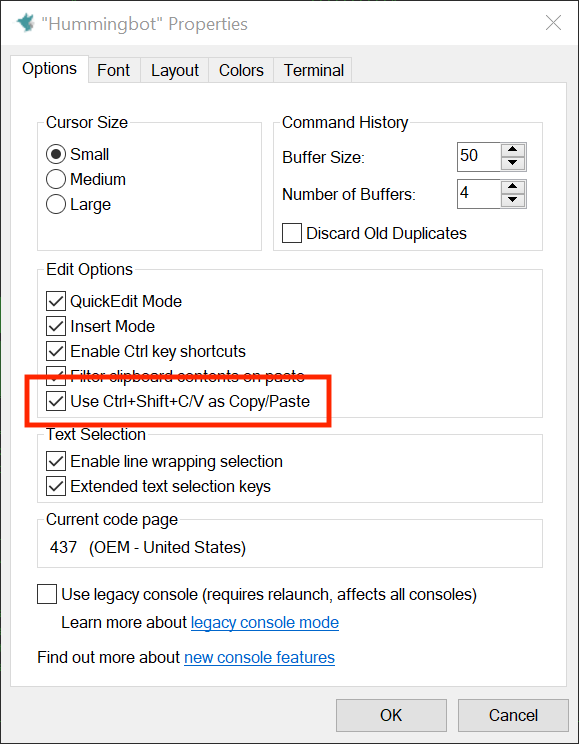
To use this shortcut, check this box by doing a right-click on the title bar at the top of the Hummingbot window, then select Properties.
Adding New Commands
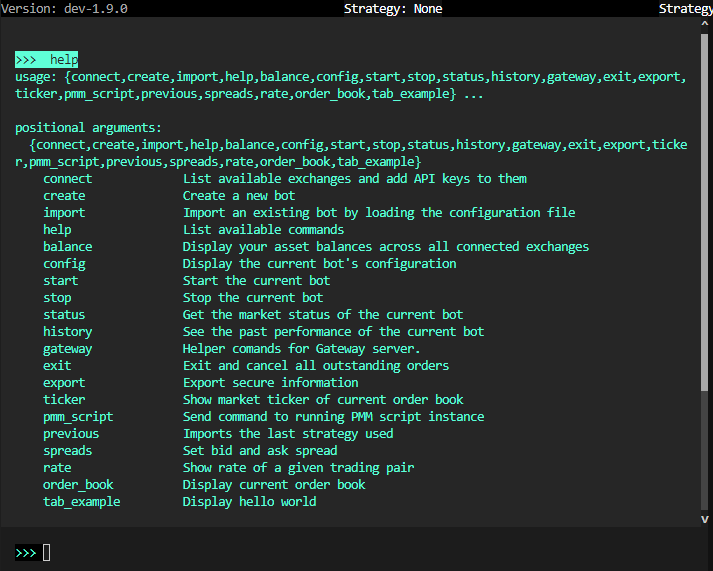
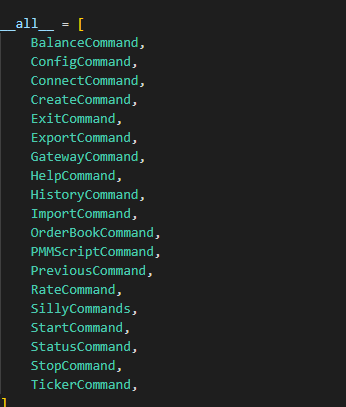
Currently, Hummingbot supports the following commands:
Depending on the usage of the hummingbot client, you may need to add new commands to the client. This is done by adding a new command class to the hummingbot/client/command directory.
The new command class should be called <command_name>_command.py
The new class should be called <CommandName>Command and adhere to the CamelCase naming convention.
The new class should have a function called command_name which will be ran when the command is called in the Hummingbot client.
Add the new class to the __init__.py file in the hummingbot/client/command directory and add any necessary imports to the __init__.py file.
The last step is to add any other functions that the new command class may need.
Please note: check the hummingbot/client/command directory for any existing commands that may be similar to the new command you are adding.