Hummingbot Client Installation
This page provides detailed installation instructions for the Hummingbot Client, including both Docker and source installation methods.
For a quick Docker-based setup, see the Hummingbot Client Quickstart.
System Requirements
| Component | Specifications |
|---|---|
| Operating System | Linux x64 or ARM (Ubuntu 20.04+, Debian 10+), macOS, Windows (WSL2) |
| Memory | 4 GB RAM per instance |
| Storage | 5 GB HDD space per instance |
| CPU | at least 1 vCPU per instance / controller |
Choose Your Installation Method
| Method | Best For | Requirements |
|---|---|---|
| Docker | Quick setup, isolated environment | Docker installed |
| Source | Developers, code modifications | Python, Anaconda |
Docker Installation
Prerequisites
Install Docker Desktop from the official Docker website
Desktop Users: Install Docker Desktop from official site
Headless Servers (VPS like AWS EC2 or Digital Ocean):
Prerequisites
- Docker Desktop installed
- WSL2 enabled
- Ubuntu distribution installed
Always run commands in: Ubuntu Terminal (Start Menu → Ubuntu)
Install and Run
Clone the repository and run setup:
Attach to the running container:
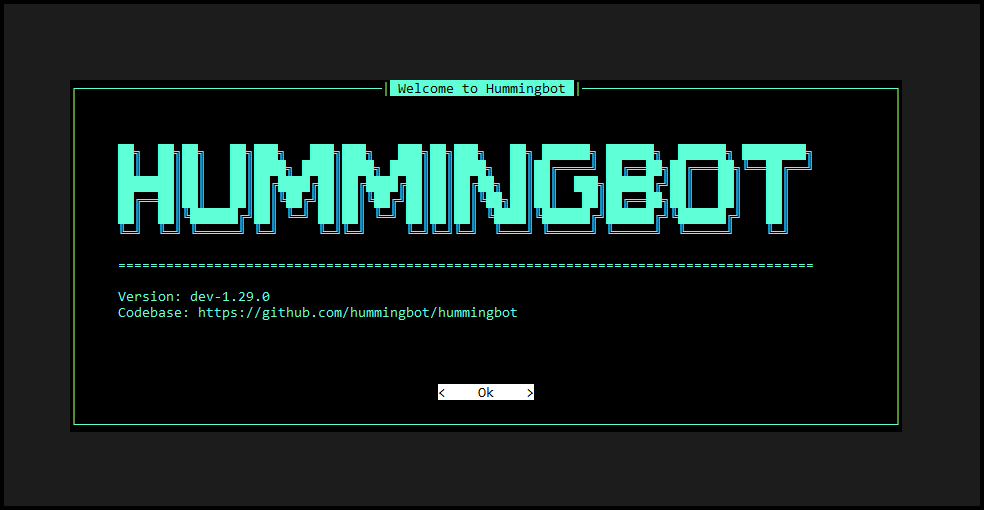
You should see the Hummingbot welcome screen:
Docker Commands
| Command | Description |
|---|---|
make setup |
Configure environment (prompts for Gateway) |
make deploy |
Start Hummingbot in background |
docker attach hummingbot |
Attach to running instance |
docker compose down |
Stop Hummingbot |
docker compose logs -f |
View logs |
docker pull hummingbot/hummingbot:latest |
Update to latest version |
Detach Without Stopping
Press Ctrl + P then Ctrl + Q to detach from Docker without stopping the bot.
Development or Older Versions
Edit docker-compose.yml and change the image field:
# Development branch
image: hummingbot/hummingbot:development

# Specific version (e.g., 2.0.0)
image: hummingbot/hummingbot:version-2.0.0
Then restart:
Source Installation
Prerequisites
Install Xcode Command Line Tools:
Install Anaconda:
We recommend the full Anaconda distribution (not Miniconda) to avoid dependency conflicts.
Graphical Installer: Visit anaconda.com/download and download for your Mac type.
Command Line (Intel):
curl -O https://repo.anaconda.com/archive/Anaconda3-2024.10-1-MacOSX-x86_64.sh
bash Anaconda3-2024.10-1-MacOSX-x86_64.sh
Command Line (Apple Silicon M1/M2/M3):
Install System Packages:
Install Anaconda:
Install and Run
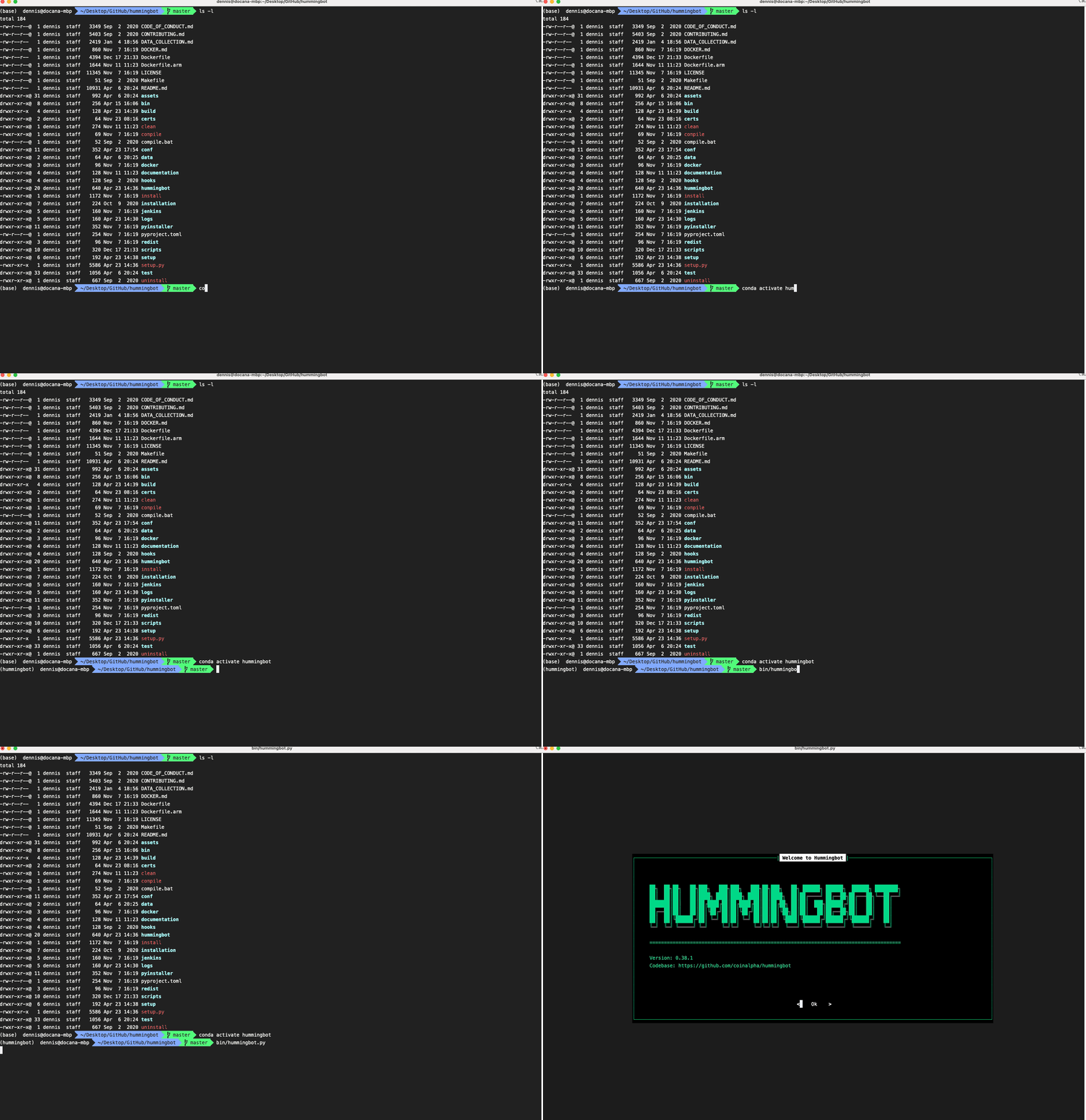
Clone the repository:
Install the environment and dependencies:
Activate the environment:
Compile the code:
Launch Hummingbot:
Development or Older Versions
Development Branch:
Specific Version:
Folder Structure
Your Hummingbot installation contains:
hummingbot/
├── conf/
│   ├── connectors/    # Exchange API keys (encrypted)
│   ├── strategies/    # Strategy config files
│   └── scripts/       # Script config files
├── logs/              # Log files
├── data/              # Trade databases and CSV files
└── scripts/           # Custom scripts
| Folder | Description |
|---|---|
/conf/connectors |
Exchange API keys encrypted by your password |
/conf/strategies |
Strategy configs created with create command |
/conf/scripts |
Script configs created with create --v2-config |
/logs |
Log files from your trading sessions |
/data |
SQLite databases and CSV trade history |
/scripts |
Add custom scripts here for use with start command |
Running in Background
Docker
Press Ctrl + P then Ctrl + Q to detach without stopping.
Re-attach with:
Source (using screen)
Start a screen session:
Run Hummingbot:
Detach: Ctrl + A then Ctrl + D
Re-attach:
List sessions:
Exiting Hummingbot
Run the exit command to cancel all orders and close Hummingbot.
Use exit -f to force close in case of errors.
Tip
You can also press Ctrl + C twice to exit.
Gateway for DEX Trading
Gateway Required for DEX Trading
To trade on decentralized exchanges (Uniswap, PancakeSwap, Raydium, etc.), you need to install Gateway separately.
See Gateway Installation for setup instructions.
Next Steps
- Basic Features - Learn the Hummingbot CLI
- V2 Strategy Walkthrough - Create your first strategy
- Hummingbot FAQ - Common questions
- Updating to New Versions - Update your installation