Hummingbot Client Quickstart
This guide walks you through installing the Hummingbot Client using Docker, the simplest method for most users.
For source installation or detailed configuration options, see Client Installation.
What You'll Set Up
By the end of this guide, you'll have:
- Hummingbot Client - CLI-based trading bot for centralized exchanges (CEX)
- Gateway (optional) - Middleware for trading on decentralized exchanges (DEX) like Uniswap, PancakeSwap, and Raydium
This setup is best for running a single bot instance on your local machine or learning how Hummingbot works.
Prerequisites
Install Docker on your system:
Install Docker Desktop from the official Docker website
Desktop Users: Install Docker Desktop from official site
Headless Servers (VPS like AWS EC2 or Digital Ocean):
Prerequisites
- Docker Desktop installed
- WSL2 enabled
- Ubuntu distribution installed
Always run commands in: Ubuntu Terminal (Start Menu → Ubuntu)
Step 1: Clone the Repository
Step 2: Setup and Deploy
The make setup command configures your environment (and optionally enables Gateway for DEX trading). The make deploy command downloads the latest Hummingbot image and starts it in the background.
Step 3: Attach to Hummingbot
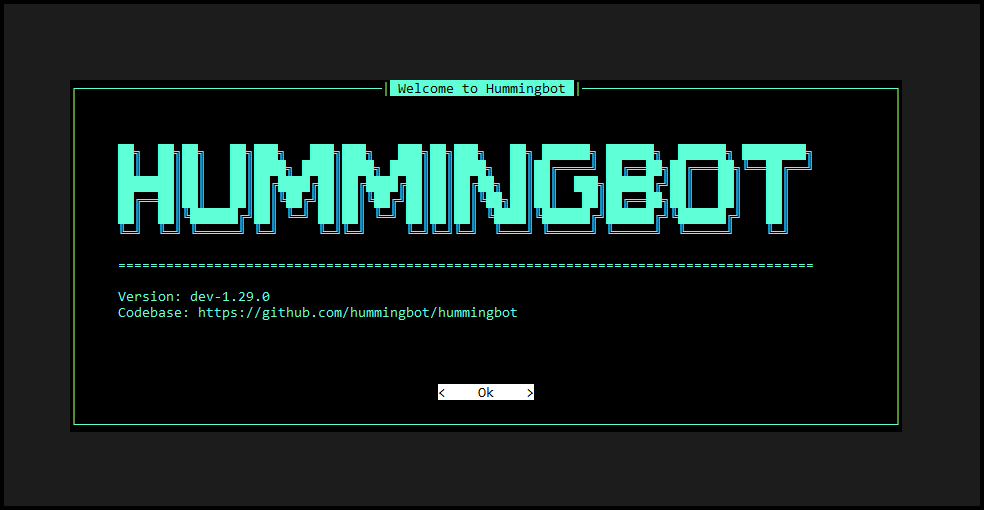
You should see the Hummingbot welcome screen:
Step 4: Set Your Password
On first launch, you'll be prompted to create a password. This password encrypts your exchange API keys and other sensitive data.
Step 5: Connect an Exchange
Use the connect command to add your exchange API keys:
Follow the prompts to enter your API key and secret.
Common Commands
| Command | Description |
|---|---|
connect [exchange] |
Add exchange API keys |
balance |
View your balances |
create |
Create a new strategy |
start |
Start a strategy |
stop |
Stop the current strategy |
exit |
Exit Hummingbot |
Managing Your Instance
Detach Without Stopping
Press Ctrl + P then Ctrl + Q to return to your terminal while keeping Hummingbot running.
Re-attach
Stop Hummingbot
Update to Latest Version
Gateway for DEX Trading
To trade on decentralized exchanges like Uniswap, PancakeSwap, or Raydium, you can enable Gateway alongside Hummingbot. The Docker Compose file includes Gateway configuration that's commented out by default.
Enable Gateway
Edit docker-compose.yml and uncomment the Gateway-related lines:
  gateway:
    restart: always
    container_name: gateway
    image: hummingbot/gateway:latest
    ports:
      - "15888:15888"
    volumes:
      - "./gateway_files/conf:/home/gateway/conf"
      - "./gateway_files/logs:/home/gateway/logs"
      - "./certs:/home/gateway/certs"
    environment:
      - GATEWAY_PASSPHRASE=admin
      - DEV=true
The GATEWAY_PASSPHRASE is used to encrypt your wallet private keys. Change admin to a secure passphrase.
Start Both Services
[+] Running 3/3
 ✔ Network hummingbot_default  Created
 ✔ Container hummingbot        Started
 ✔ Container gateway           Started
Verify Gateway Connection
Attach to Hummingbot:
After setting your password, you should see Gateway: ONLINE in the upper right corner.
Development Mode
By default, Gateway runs in development mode (DEV=true) which uses HTTP for easier setup. For production environments requiring HTTPS, set DEV=false and ensure certificates are properly configured. See Gateway Installation for details.
Next Steps
- Basic Features - Learn the Hummingbot CLI commands
- Connect to Exchanges - Add your exchange credentials
- Create a Strategy - Start trading
- Updating to New Versions - Keep your installation current
Source Installation
For developers or users who prefer running from source, use the refactored Makefile commands:
make installcreates and configures the conda environmentmake runstarts the Hummingbot client (supports same arguments as the old./startscript, e.g.,make run -p -f strategy.yml)
For detailed source installation options, see Client Installation.
Need More Options?
For development setup or advanced configuration, see the detailed Client Installation page.